
Automatic Meeting Notes + Calendar Sync in Noteo [2026]
Upload a recording, say what kind of meeting it was, and the notes write themselves. Connect Google or Outlook to send the bot and name your uploads.
Two things changed in Noteo this month. First, your meeting notes now write themselves: upload a recording, tell Noteo what kind of meeting it was and what you want from it, and the first notes arrive with the transcript, already shaped for that meeting. Second, your calendar is connected: link Google Calendar or Outlook, see your meetings inside Noteo, send the meeting bot to a call in one click, and watch your uploads get named after the event they were recorded in.
This post walks through both, step by step, with screenshots taken in the app. The recordings and people in them (Maya, Tom, Leo and Priya of the "Harbor" app team) are fictional.
Notes that write themselves
A transcript is useful, but most of the time you want something shorter: who decided what, what is blocked, what you need to do next. Until now you got that by clicking Generate on the Summary tab. Now Noteo writes the first notes for you as soon as the transcript is ready, and it writes them for the kind of meeting you had. Notes for a sales call focus on the prospect's needs, objections and next steps; notes for a class list the concepts taught and a few review questions; notes for a daily stand-up are organised person by person.
Step 1: Upload a recording
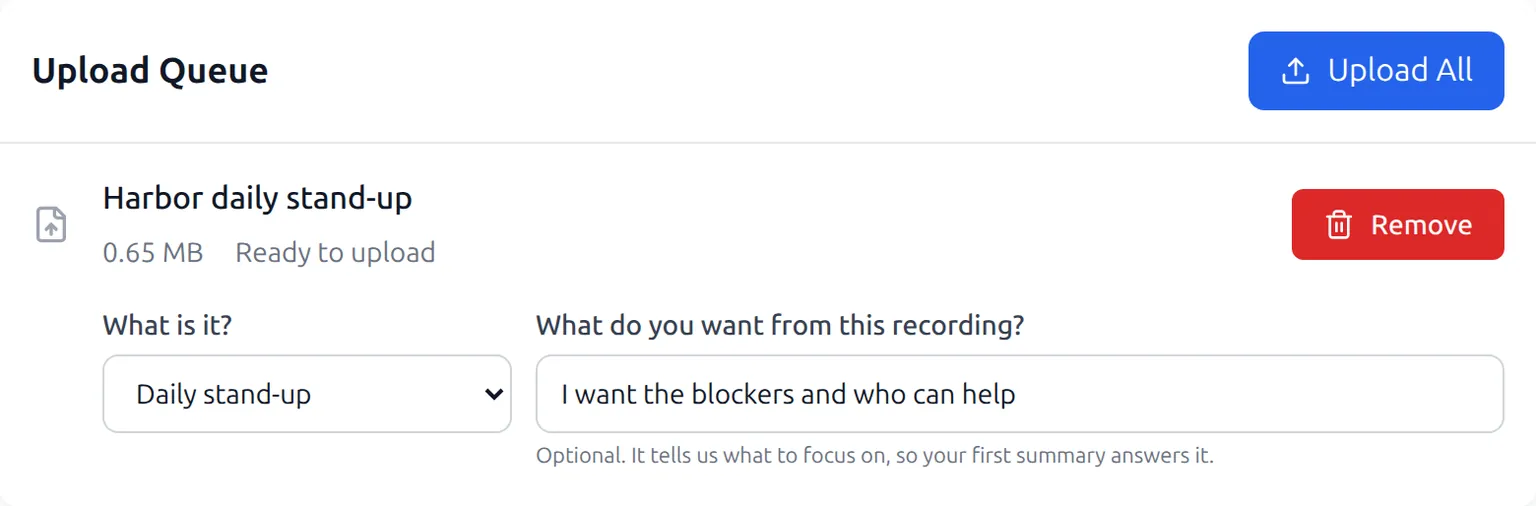
Open New transcription in the sidebar and choose the Upload tab. Drop in an audio or video file (MP3, M4A, WAV, MP4, MOV and most other formats work). Each file in the upload queue gets two optional fields.
Step 2: Say what kind of meeting it is, or let Noteo work it out
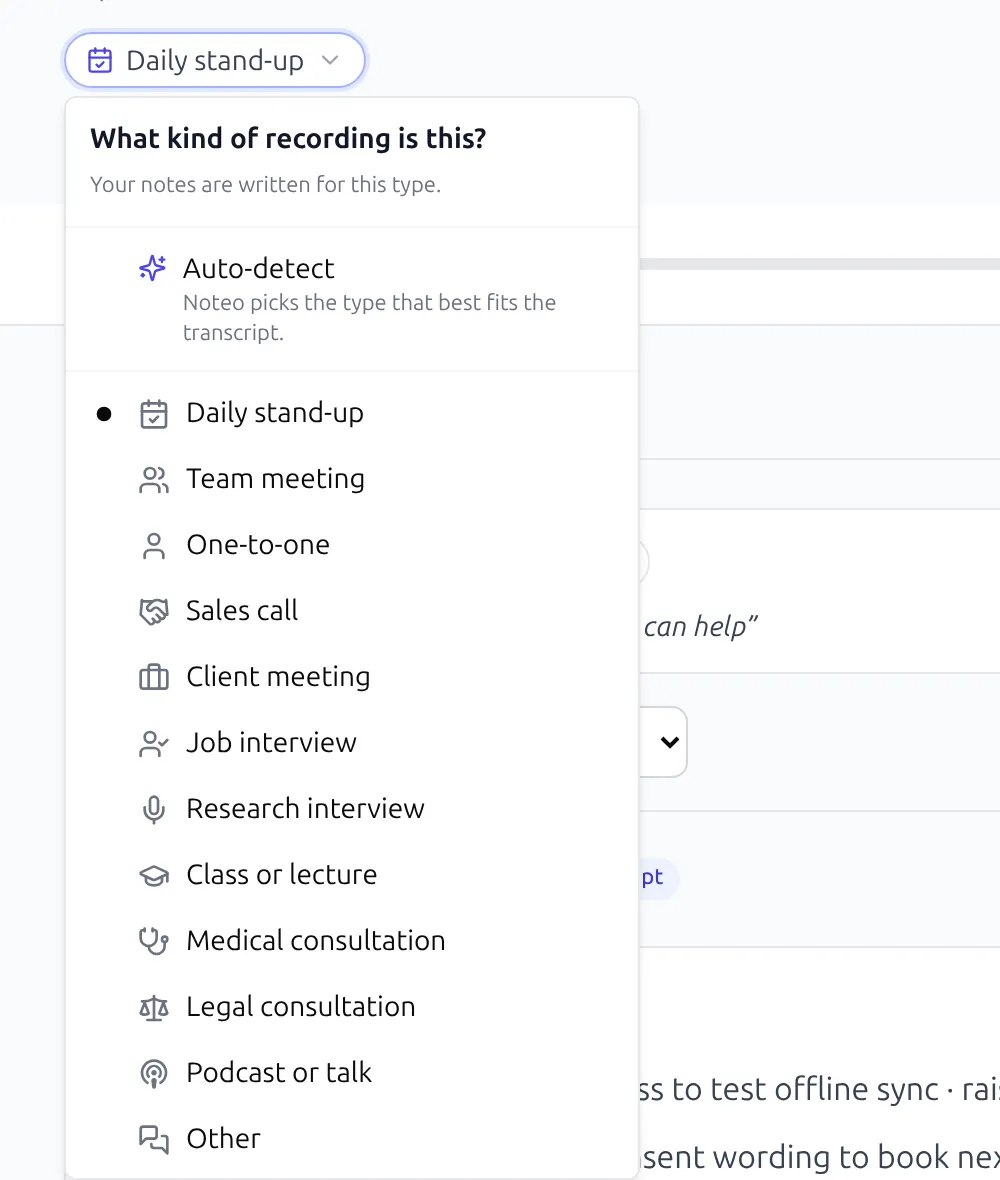
What is it? starts on Auto-detect. Leave it there and Noteo picks the type that best fits the transcript. If the title or your goal already names it (words like "daily", "stand-up" or "scrum"), Noteo takes the hint straight away. You can also pick the type yourself from the list:
- Daily stand-up, team meeting, one-to-one
- Sales call, client meeting
- Job interview, research interview
- Class or lecture, podcast or talk
- Medical consultation, legal consultation
- Other
Step 3: Say what you want from it
What do you want from this recording? is a short sentence in your own words, for example "I want the action items and who owns them", "I want the key quotes from this interview" or "I want to remember what my client asked for". The notes then open with a section that answers that directly, before covering the rest. Leave it empty and you get the standard notes for the meeting type.
Step 4: Open the meeting
Click Upload All. When the transcript is ready, the queue shows a View button. On the meeting's Summary tab you will see "Writing your first notes…" for a moment, then the notes. They are written in the language of the transcript, they only state what was actually said, and they attribute points to speakers when the transcript names them. The same first notes are written for recordings made by the meeting bot (more on that below), where the type is always detected automatically.
What a daily stand-up looks like
Stand-ups are where a generic summary falls short: everyone speaks for a minute, and what matters is the list of who is blocked. So the Daily stand-up type has its own layout. Here are the notes Noteo wrote for our fictional 85-second stand-up, with the goal "I want the blockers and who can help":
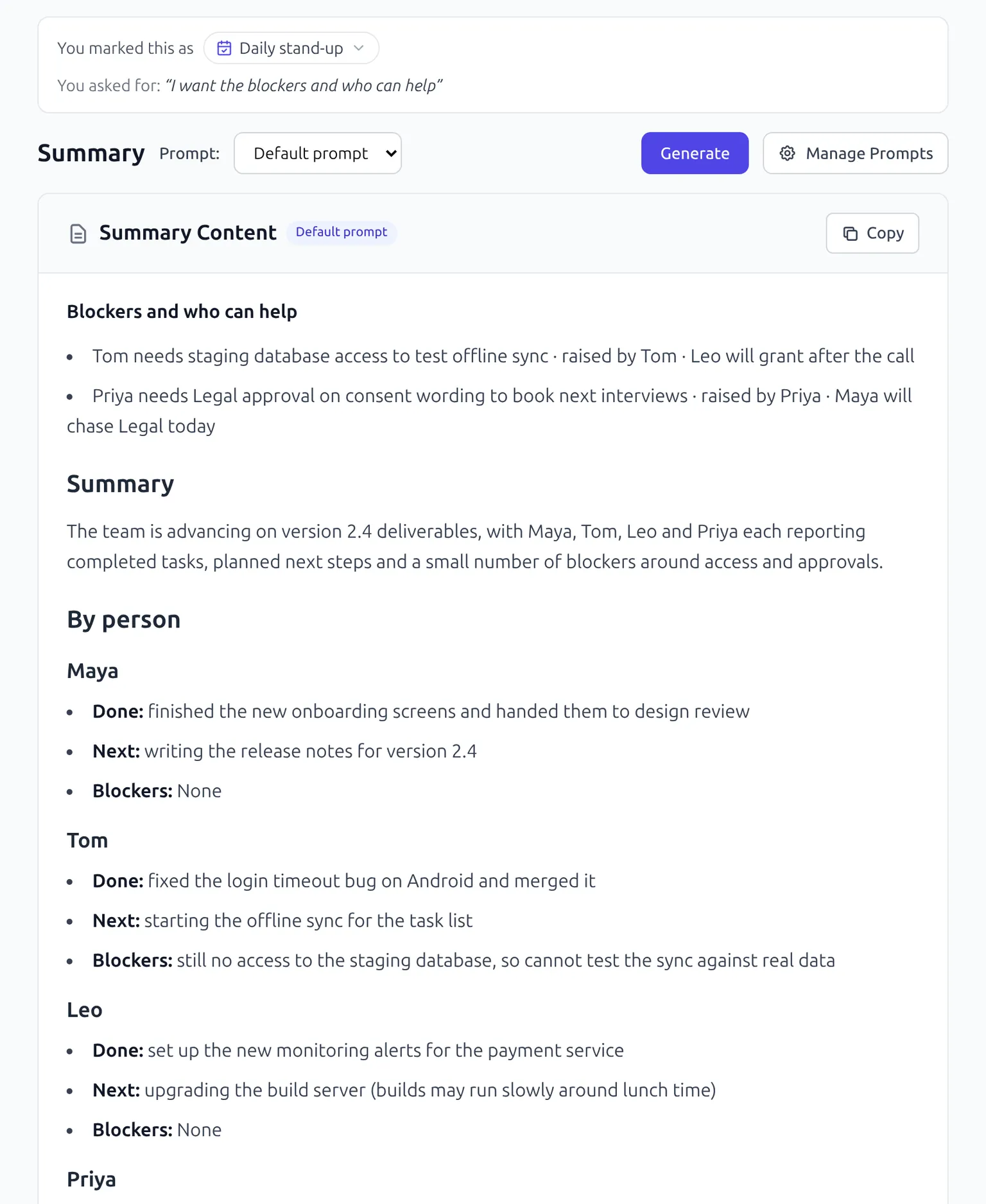
The stand-up notes follow the same structure every time:
- Summary: one or two sentences on where the team stands today.
- By person: for each speaker, what they finished (Done), what they work on next (Next) and what blocks them (Blockers, or "None" when they said so).
- Blockers needing help: each blocker, who raised it and who can help, when that was said.
- Decisions taken during the stand-up.
- Follow-ups after the stand-up: topics parked for later, with the people involved.
Sections with nothing in them are left out, and nothing is invented to fill them. If you run stand-ups in a document today, compare this with the daily stand-up format in our meeting notes templates: it is the same idea, filled in for you.
When Noteo guesses the type wrong
Auto-detect is usually right, and Noteo always shows what it decided. On the meeting page, the type appears as a chip under the title (for example "Team meeting (auto-detected)"), and the Summary tab starts with "We read this as…".
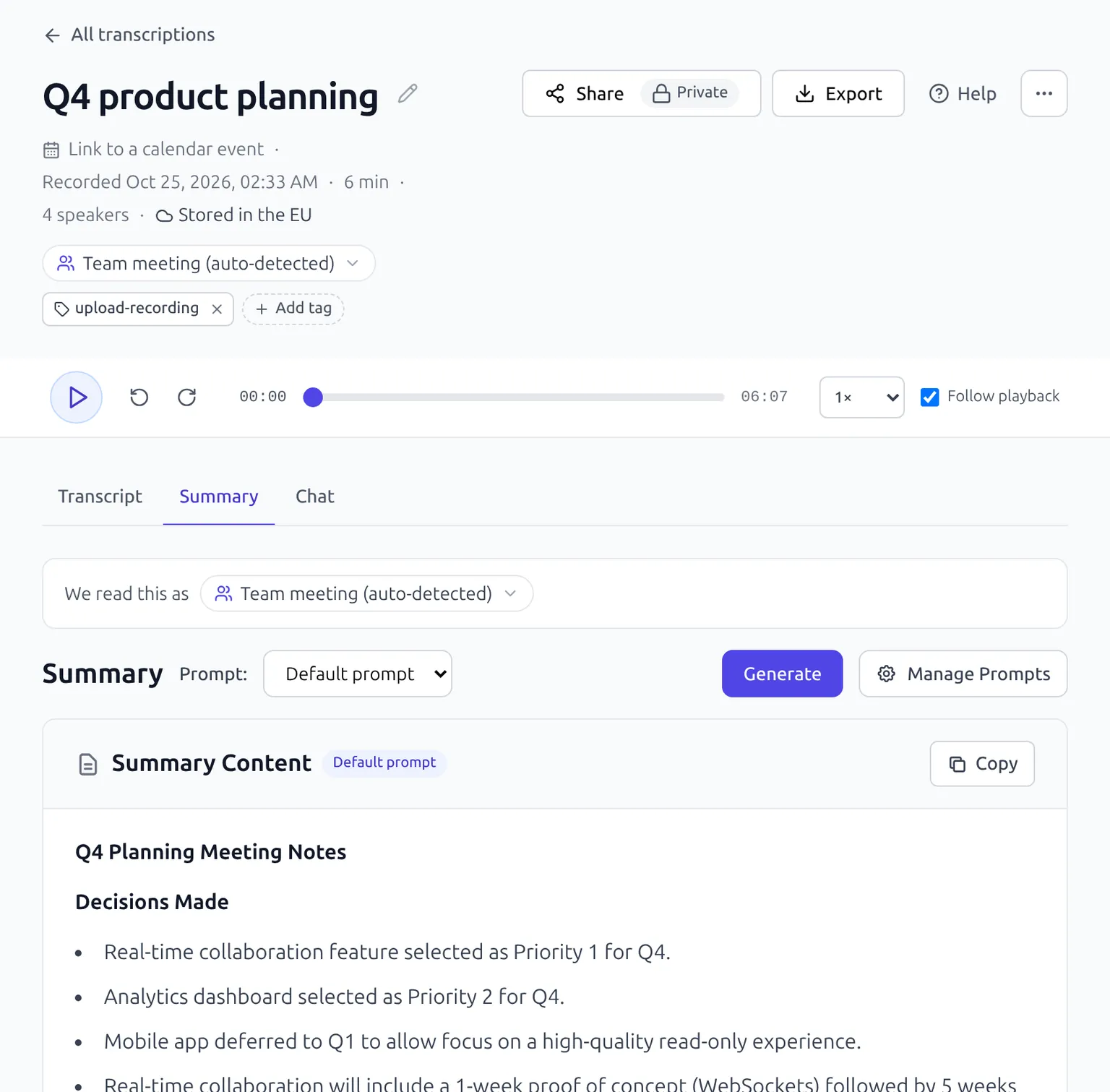
If it is wrong, click the type chip and pick the right one. Noteo then offers Rewrite as… with the new type, so the notes match. You can also go back to Auto-detect from the same menu, and you can still run your own prompts with Generate and Manage Prompts next to the notes.
Your calendar, connected
The second change starts in the sidebar, under Calendar. Connecting a calendar does three things: it shows your meetings in Noteo, it lets you send the meeting bot to a call without copying links around, and it lets Noteo name your uploads after the meeting they were recorded in.
Connect Google Calendar or Outlook
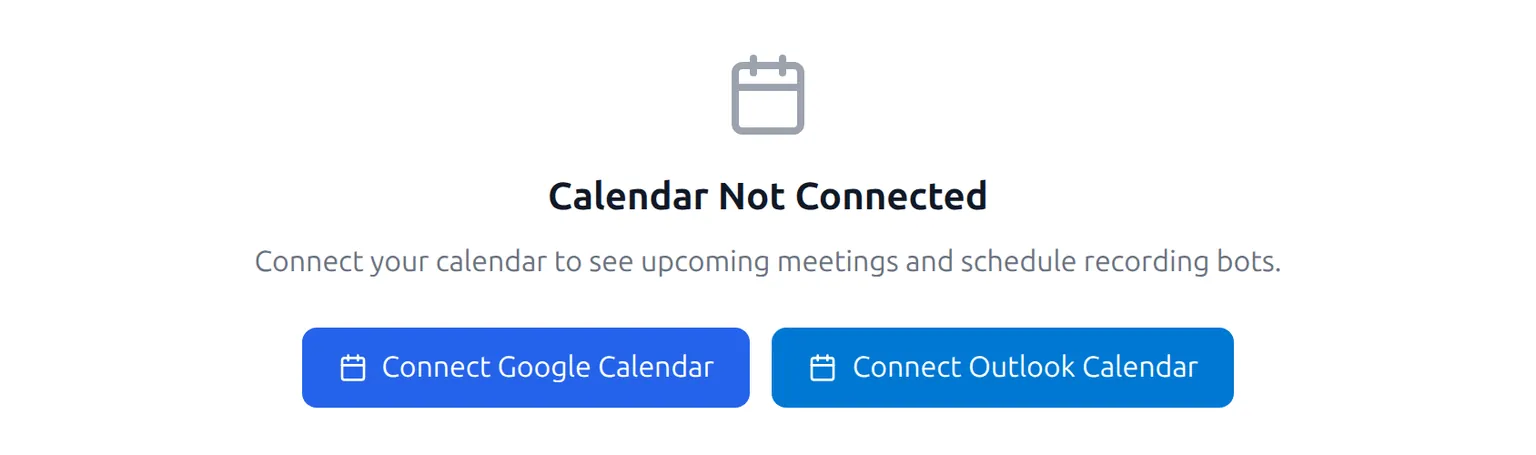
On the Calendar page, choose Connect Google Calendar or Connect Outlook Calendar and sign in with that account in the window that opens. You can connect both. The Settings menu on the Calendar page shows which calendars are connected and lets you manage each one.
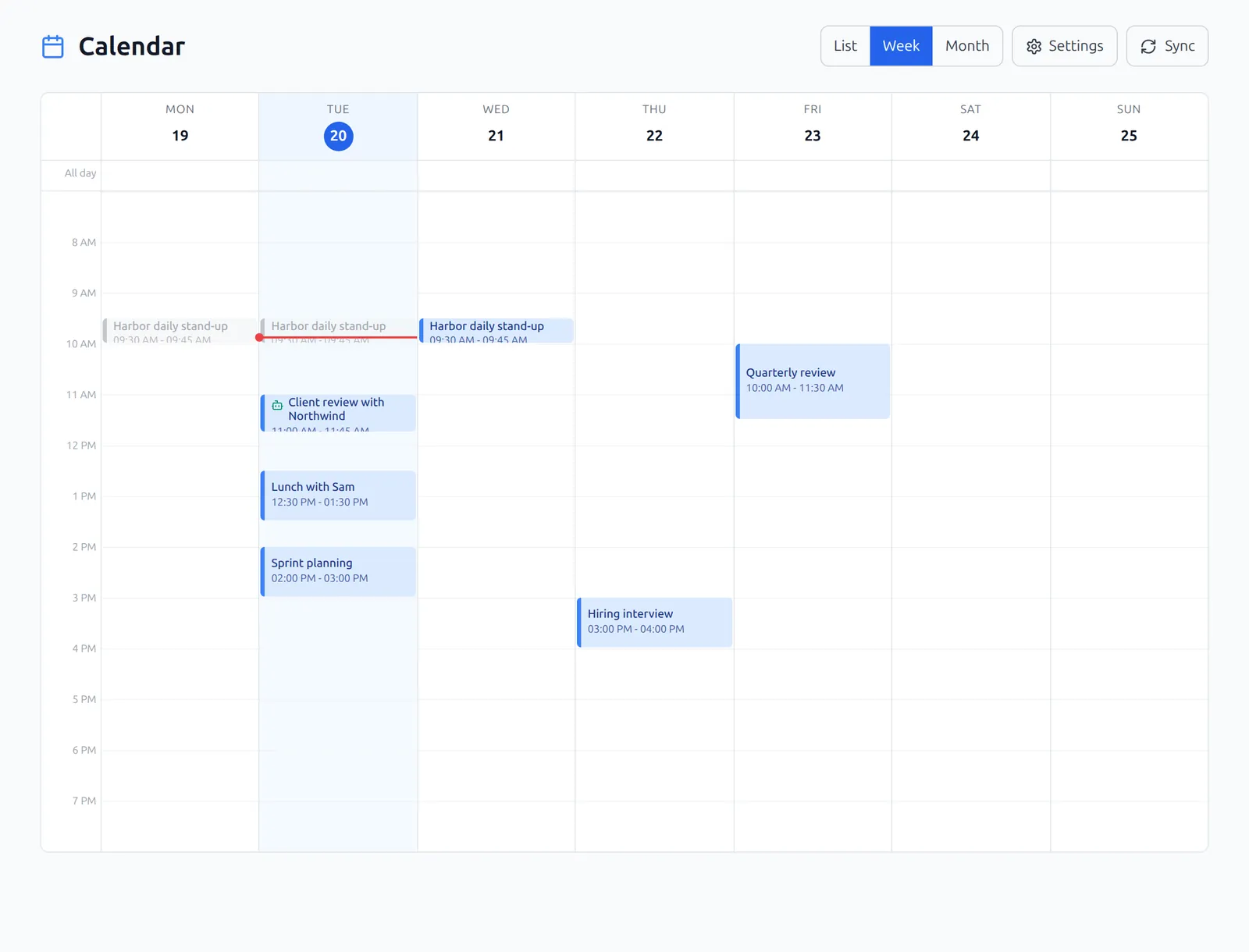
Once connected, your meetings appear in a List (today and the coming days), Week or Month view. Meetings that already ended today stay visible, greyed out. Sync pulls the latest changes from your calendar.
Send the meeting bot from your calendar
Every upcoming meeting whose calendar event carries a video-call link gets a Schedule Bot button: Google Meet, Microsoft Teams, or Zoom when Zoom is attached as the event's conferencing (for example with Zoom's Google Calendar add-on). Click it and the button turns into Bot Scheduled; click that again if you change your mind. Events without a meeting link (a lunch, a room booking) say "No meeting link" instead.
Around the start of the meeting, the bot joins the call under the name "Noteo AI" followed by the first part of your email address, and posts a short chat message saying it is there to record and transcribe. If it is left in a waiting room for ten minutes, or nobody else joins within five, it leaves on its own. After the call, the recording is transcribed, the first notes are written as described above, and the meeting is linked to its calendar event and tagged with the event's name.
Uploads named after the meeting
Not every meeting happens on a video call. You record the stand-up on your phone, or a workshop with OBS, and upload the file later. Without a calendar, that meeting is called "2026-10-20 09-30-12" or "Recording_20261020_093012". With a calendar connected, Noteo works out when the recording started and looks for the calendar event it started in:
- It reads the start time from the file name, in the formats recorders use: OBS ("2026-10-20 09-30-12"), Android ("Recording_20261020_093012") and macOS ("… 2026-10-20 at 09.30.12").
- If the name has no date, it uses the recording date stored in the file, or else the time the file was last saved minus its length.
- A recording that starts between 15 minutes before an event and 5 minutes before its end belongs to that event.
The meeting then takes the event's name, gets the event's name as a tag (so every "Harbor daily stand-up" ends up under the same tag), and shows the event with its Google Calendar or Outlook logo and time under the title. If you typed your own title in the upload queue, Noteo keeps it. If two events started at the same time, or the match is wrong, use the edit button next to the event under the title to pick another one, or Link to a calendar event to choose one yourself.
A few tips
- Write the goal like a question you would ask a colleague. "What did the client ask for, and by when?" works better than "summary".
- Keep recorder file names as they are. The date and time in them is what lets Noteo find the calendar event.
- Use the event tag for recurring meetings. Every stand-up, weekly sync or client check-in matched to the same event name shares a tag, which makes them easy to find together.
- Turn notes into follow-ups. The first notes are a good starting point for the follow-up email; our meeting follow-up guide shows how to make sure action items actually get done.
Try it
Both features are live for everyone with a Noteo account. Upload a recording from your last meeting to see the first notes, then open Calendar to connect Google or Outlook. The free plan includes 300 upload minutes a month, and recordings made by the meeting bot do not count toward that quota. See pricing for what each plan includes, or read more about AI meeting summaries in Noteo.
Frequently Asked Questions
Do I have to choose the meeting type?
No. The type starts on Auto-detect, and Noteo picks the type that best fits the transcript, or takes the hint when the title or your goal names it (for example "daily" or "stand-up"). You can change the type later from the chip under the meeting title and have the notes rewritten for it.
Which meeting types does Noteo recognise?
Daily stand-up, team meeting, one-to-one, sales call, client meeting, job interview, research interview, class or lecture, medical consultation, legal consultation, podcast or talk, and other. Each type gets notes focused on what matters for it.
Which calendars can I connect?
Google Calendar and Outlook. You can connect both from the Calendar page in Noteo, and manage each connection from the Settings menu on that page.
Which meetings can the bot join from the calendar?
Upcoming meetings whose calendar event carries a Google Meet, Microsoft Teams or Zoom link in its conferencing details. Events without a meeting link show "No meeting link" instead of the Schedule Bot button.
How does Noteo know which calendar event an upload belongs to?
It reads when the recording started from the file name (OBS, Android and macOS formats), from the recording date stored in the file, or from the time the file was last saved minus its length. A recording that starts between 15 minutes before an event and 5 minutes before its end is matched to that event, named after it and tagged with its name. You can change or remove the match on the meeting page.
Noteo Team
The Noteo.ai team is dedicated to helping teams work smarter with AI-powered meeting tools.
